Showing posts with label SQL Login. Show all posts

Monday, December 21, 2015

How to find user who ran DROP or DELETE statements on your SQL Server Objects

Problem
Someone has dropped a table from your database and you want to track who did it.  Or someone has deleted some data from a table, but no one will say who did.  In this tip, we will look at how you can use the transaction log to track down some of this information.
Solution
Here we will use the same undocumented function "fn_dblog" to find any unauthorized or unapproved deletes or table drops. This tip will help you track or find any unethical or an unwanted user who has dropped a table or deleted data from a table. I strongly suggest testing any undocumented functions in a lab environment first.
One way to find such users is with the help of the default trace, because the default trace captures and tracks database activity performed on your instance, but if you have a busy system the trace files may roll over far too fast and you may not be able to catch some of the changes in your database.  But these changes are also tracked in the transaction log file of the database and we will use this to find the users in question.

Finding a user who ran a DELETE statement

Step 1
Before moving ahead, we will create a database and a table on which I will delete some data. Run the below SQL code to create a database and table.
--Create DB.
USE [master];
GO
CREATE DATABASE ReadingDBLog;
GO
-- Create tables.
USE ReadingDBLog;
GO
CREATE TABLE [Location] (
    [Sr.No] INT IDENTITY,
    [Date] DATETIME DEFAULT GETDATE (),
    [City] CHAR (25) DEFAULT 'Bangalore');
Step 2
We have created a database named "ReadingDBLog" and a table 'Location' with three columns. Now we will insert a 100 rows into the table.
USE ReadingDBLog
GO
INSERT INTO Location DEFAULT VALUES ;
GO 100
Step 3
Now go ahead and delete some rows to check who has deleted your data.
USE ReadingDBLog
GO
DELETE Location WHERE [Sr.No]=10
GO
SELECT * FROM Location WHERE [Sr.No]=10
GO
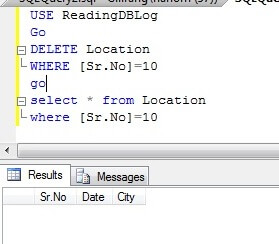
Delete a row from the table'location'
You can see in the above screenshot that a row has been deleted from the table "Location". I also ran a SELECT statement to verify the data has been deleted.
Step 4
Now we have to search the transaction log file to find the info about the deleted rows. Run the below command to get info about all deleted transactions.
USE ReadingDBLog
GO
SELECT 
    [Transaction ID],
    Operation,
    Context,
    AllocUnitName
    
FROM 
    fn_dblog(NULL, NULL) 
WHERE 
    Operation = 'LOP_DELETE_ROWS'
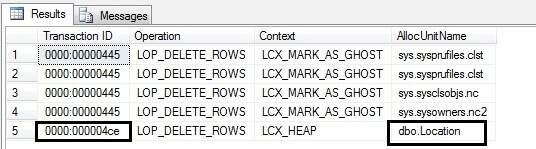

Find all the deleted rows info from t-log file
All transactions which have executed a DELETE statement will display by running the above command and we can see this in the above screenshot. As we are searching for deleted data in table Location, we can see this in the last row. We can find the table name in the "AllocUnitName" column. The last row says a DELETE statement has been performed on a HEAP table 'dbo.Location' under transaction ID 0000:000004ce. Now capture the transaction ID from here for our next command.
Step 5
We found the transaction ID from the above command which we will use in the below command to get the transaction SID of the user who has deleted the data.
USE ReadingDBLog
GO
SELECT
    Operation,
    [Transaction ID],
    [Begin Time],
    [Transaction Name],
    [Transaction SID]
FROM
    fn_dblog(NULL, NULL)
WHERE
    [Transaction ID] = '0000:000004ce'
AND
    [Operation] = 'LOP_BEGIN_XACT'
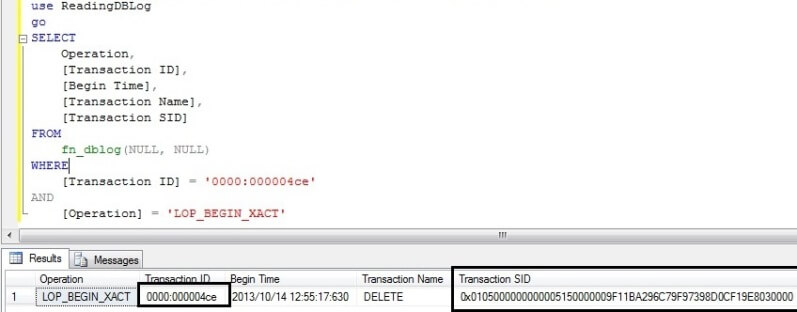

Find the transaction SID of the user
Here, we can see the [Begin Time] of this transaction which will also help filter out the possibilities in finding the exact info like when the data was deleted and then you can filter on the base of begin time when that command was executed.
We can read the above output as "A DELETE statement began at 2013/10/14 12:55:17:630 under transaction ID 0000:000004ce by user transaction SID 0x0105000000000005150000009F11BA296C79F97398D0CF19E8030000.
Now our next step is to convert the transaction SID hexadecimal value into text to find the real name of the user.
Step 6
Now we will figure out who ran the DELETE command. We will copy the hexadecimal value from the transaction SID column for the DELETE transaction and then pass that value into the SUSER_SNAME () function.
USE MASTER
GO   
SELECT SUSER_SNAME(0x0105000000000005150000009F11BA296C79F97398D0CF19E8030000)


Find the login name with the help of transaction SID
Now we have found the user that did the delete.

Finding a user who ran a DROP statement

Step 1
Here I am going to drop table Location.
USE ReadingDBLog
GO
DROP TABLE Location
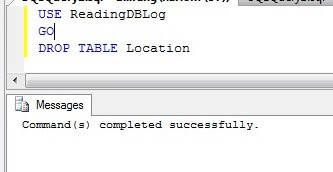

Drop a table
Step 2
Similarly if you drop any object or you perform anything operation in your database it will get logged in the transaction log file which will be visible by using this function fn_dblog.
Run the below script to display all logs which have been logged under DROPOBJ statement.
USE ReadingDBLog
GO
SELECT 
Operation,
[Transaction Id],
[Transaction SID],
[Transaction Name],
 [Begin Time],
   [SPID],
   Description
FROM fn_dblog (NULL, NULL)
WHERE [Transaction Name] = 'DROPOBJ'
GO
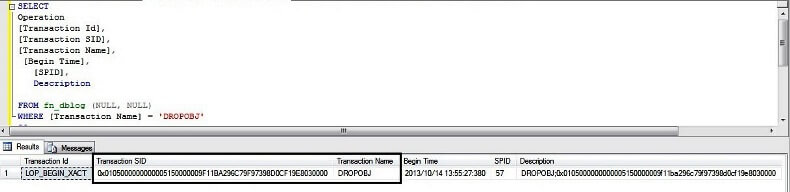

Finding a user trasaction SID who ran DROP statement for table location
Here we can find the transaction SID and all required info which we need to find the user.
Step 3
Now we can pass the transaction SID into system function SUSER_SNAME () to get the exact user name.
SELECT SUSER_SNAME(0x0105000000000005150000009F11BA296C79F97398D0CF19E8030000) 


Finding a user who ran DROP statement for table location

Wednesday, June 19, 2013

SQL Commands

SQL Commands

SQL commands are instructions used to communicate with the database to perform specific task that work with data. SQL commands can be used not only for searching the database but also to perform various other functions like, for example, you can create tables, add data to tables, or modify data, drop the table, set permissions for users. SQL commands are grouped into four major categories depending on their functionality:
  • Data Definition Language (DDL) - These SQL commands are used for creating, modifying, and dropping the structure of database objects. The commands are CREATE, ALTER, DROP, RENAME, and TRUNCATE.
  • Data Manipulation Language (DML) - These SQL commands are used for storing, retrieving, modifying, and deleting data. These commands are SELECT, INSERT, UPDATE, and DELETE.
  • Transaction Control Language (TCL) - These SQL commands are used for managing changes affecting the data. These commands are COMMIT, ROLLBACK, and SAVEPOINT.
  • Data Control Language (DCL) - These SQL commands are used for providing security to database objects. These commands are GRANT and REVOKE.

Creating a SQL Server Database Login Account

The system administrator ("sa") account in SQL Server allows access to all the databases and settings in SQL Server.  Since Blackthorne users only need access to the Blackthorne database, you should create a login account that only has access to what is absolutely necessary.  Then, when users switch to the database from other computers, they will use this new account.

To create a new login account:

  1. From the Start menu in Windows select Start|All Programs|Microsoft SQL Server 2005|SQL Server Management Studio Express.
  2. In the sidebar on the left, expand the database, then the Security folder, then click Logins.
  1. From the Logins window, right click the Logins box and select New Login...

SQLInternetNewLogin.gif

  1. On the Login window, enter a Login name.  Then select SQL Server authentication and enter a Password and Confirm password.  This is the password that will keep bad guys out of your data so make sure you use a strong password that won't be easily guessed, and make sure you remember it.  It is also the password that you will use when switching databases within eB.

SQLInternetNewDBLogin.gif

  1. In the Default database box, select your Blackthorne database.  Click OK to return to the Logins window.  
  1. You now have a new SQL Server Login account.  Next, you will create a database user and link it to this account.

To create a database user:

  1. In the sidebar in the SQL Server Configuration Manager, expand Databases.

SQLInternetDBUsers.gif

  1. Find the name of your Blackthorne database under Databases and expand it.
  1. Expand Security and then select Users.
  2. In the Users window, right click and select New User... in the context menu.
  3. In the User name, enter a database user name.  This should be the same name as the SQL Login you just created.

SQLInternetDBUser.gif

  1. In the Login name, enter the same name you used in User name.  This is associating the Login account you created with the database user that you are now creating.
  2. In the Role Members list, check db_datareaderdb_datawriter, and db_ddladmin to set the permissions that the new database user will have.
  3. Click OK to exit, and then File|Exit to leave the SQL Server Management Studio.